
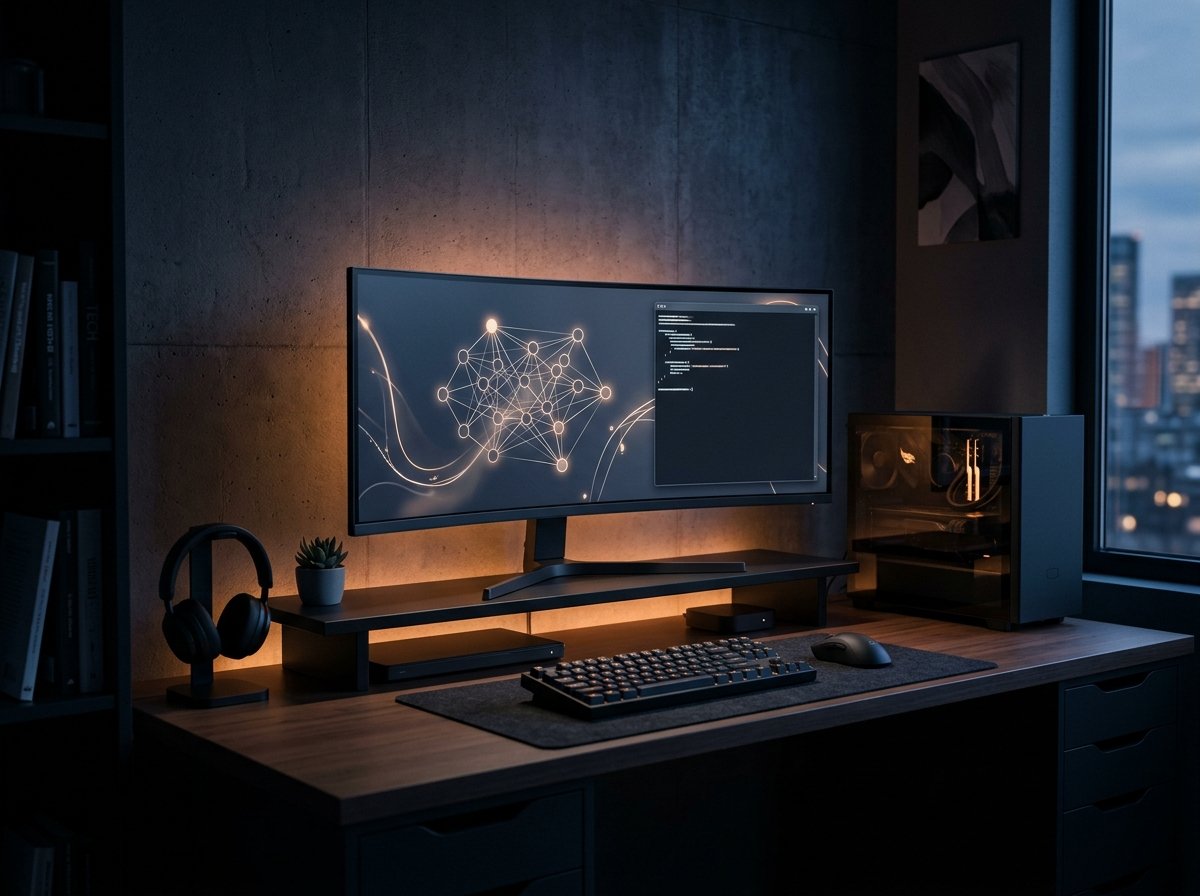
Relying exclusively on cloud-hosted services for artificial intelligence has become a growing concern for creators, developers, and power users in 2026: on one hand, mounting subscription costs and unpredictable rate limits; on the other, real risks surrounding data privacy and sovereignty. Fortunately, rapid advances in open-weights architectures and local runtime engines have transformed standard consumer computers into high-performance neural powerhouses.
Running local ai models is no longer an intimidating ritual reserved for Linux researchers compiling dependencies from scratch. Modern, polished applications like LM Studio and Ollama deliver seamless experiences with simple installers, universal GPU acceleration, and out-of-the-box support for state-of-the-art open models.
In this hands-on guide, you will learn realistic hardware requirements for 2026, understand whether a graphical interface or command-line engine best fits your workflow, and set up models like Llama, DeepSeek, and Mistral running 100% offline on your own machine.

Why Run Artificial Intelligence Locally in 2026?
Executing AI locally goes far beyond technical novelty. Three foundational advantages make local inference compelling:
- Complete Privacy and Data Ownership: No trade secrets, legal drafts, or personal thoughts are dispatched to third-party data centers. Your data is never ingested to train external models.
- Zero Recurring Costs & True Offline Availability: Once weights are downloaded to your disk, they run regardless of internet outages, aboard flights, or in remote sites with zero cost per token.
- Zero Arbitrary Filtering & Total Customization: You control the system prompt, sampling temperature, context window, and quantization parameters without corporate filtering hurdles.
Golden Rule of Local AI: The best model is not necessarily the largest on global leaderboards, but the one that fits comfortably inside your fastest video memory and streams tokens faster than human reading speed (15 to 25+ tokens per second).
Minha Dose de IA Hardware Lab
Hardware Requirements in 2026: What Do You Actually Need?
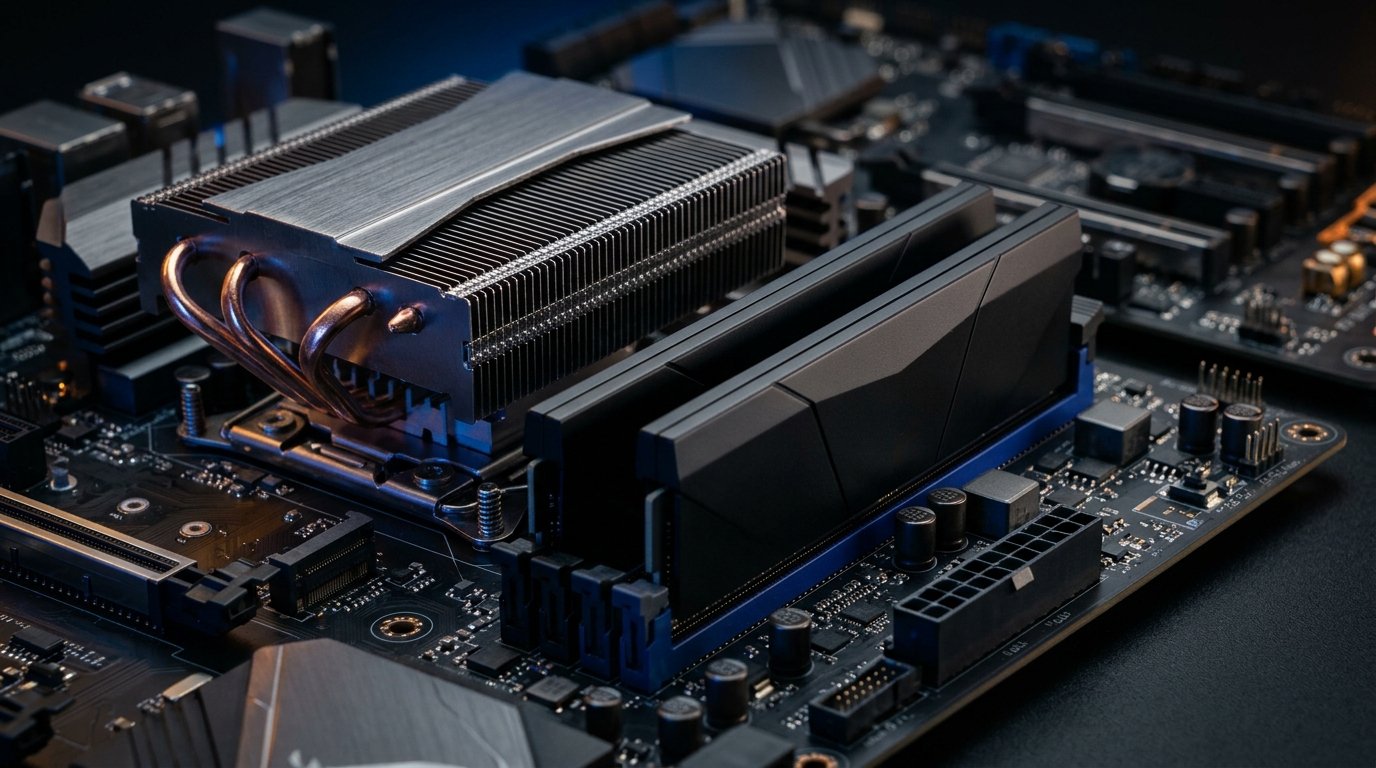
Contrary to common misconceptions, you do not need enterprise cluster infrastructure to run capable models. However, understanding the operational difference between system RAM and GPU Video RAM (VRAM) is critical.
Neural weights must reside in high-bandwidth memory for immediate, low-latency generation.
Realistic Hardware Tiers:
- Entry Level (CPU + 16 GB RAM or 6 GB to 8 GB GPUs): Ideal for compact 3B to 8B quantized models (such as Llama 3.2 3B, Phi-3.5 Mini, or Qwen 2.5 7B at Q4). Perfectly suited for drafting, quick text summaries, and lightweight automation.
- Recommended Sweet Spot (12 GB to 16 GB VRAM or 32 GB Unified RAM): The gold standard for value and performance in 2026. Capable of hosting 8B to 14B parameter models (such as Llama 3.3 8B and Qwen 2.5 Coder 14B) with generous context windows (8k to 32k tokens) and blazing generation speeds.
- Advanced / Studio Server (24 GB VRAM or Macs with 64 GB+ Unified Memory): Accommodates dense 32B models or quantized 70B models, enabling dedicated home server nodes and multi-agent systems.
Modern inference engines support broad hardware acceleration — including AMD ROCm on Radeon GPUs, NVIDIA CUDA, Apple Silicon Metal, and Vulkan/DirectML across integrated chips and Intel Arc cards.
Understanding GGUF Quantization: Why It Matters
Browsing open model hubs on Hugging Face, you will frequently spot files ending with .gguf alongside designations like Q4_K_M, Q5_K_M, and Q8_0.
Quantization compresses floating-point weights (normally 16-bit) down to 4, 5, or 8 bits per weight. This dramatically reduces memory footprints with minimal degradation in reasoning capability.
- Q4_K_M (4-bit Medium — Recommended): The sweet spot. An 8B model shrinks from ~16 GB down to ~4.9 GB on disk, retaining more than 98% of its original benchmark performance.
- Q5_K_M / Q6_K: Slightly higher mathematical and coding fidelity, worthwhile if you have extra memory margin.
- Q8_0: Near lossless fidelity, but requires nearly double the memory footprint.
Method 1: LM Studio — The Ultimate Visual Desktop Experience
LM Studio is the most intuitive entry point for desktop users. Available for Windows, macOS, and Linux, it combines a sleek user interface with a built-in search engine connecting directly to the open-source ecosystem.
Step-by-Step LM Studio Setup:
- Download & Install: Grab the installer from the official LM Studio website and run the setup wizard.
- Search for Models: Click the magnifying glass icon. Enter your target model name (e.g.,
Llama-3.3-8B-InstructorQwen2.5-Coder-7B). LM Studio automatically indicates hardware compatibility. - Select Quantization: Pick your preferred GGUF build (we recommend
Q4_K_M) and click Download. - Start Chatting: Navigate to the Chat tab, select the downloaded model from the top dropdown, and verify that GPU Offload is enabled on the right-hand panel.
- Local OpenAI-Compatible Server: LM Studio features an integrated API server. In the Local Server tab, click Start Server to expose
http://localhost:1234/v1for coding assistants, browser extensions, and local scripts.
Method 2: Ollama — Lightweight CLI Power and Headless Deployment
If you prefer terminal efficiency, zero-bloat background execution, or need to run models on a dedicated home server, Ollama is the definitive tool.
It operates as a lightweight system service paired with an intuitive command-line interface and its own curated library of optimized builds.
Step-by-Step Ollama Setup:
- Install: Download and install Ollama from the official site. It automatically configures path binaries in your terminal environment.
- Run in a Single Command: Open your terminal (PowerShell, Windows Terminal, bash, or zsh) and type:
ollama run llama3.3:8bOllama will automatically pull the optimized model weights and launch an interactive conversation prompt in seconds.
3. Specialized Coding Models: For software development and code completion, run:
ollama run qwen2.5-coder:7b4. Daily Management Commands:
ollama list: Displays all installed models stored on disk.ollama rm <name>: Deletes a model instantly to reclaim drive space.ollama ps: Shows active models currently allocated in VRAM/RAM.
5. Open WebUI: For a full ChatGPT-like web interface powered by Ollama, you can easily connect the open-source Open WebUI docker container to http://localhost:11434.
Direct Comparison: LM Studio vs Ollama
| Feature | LM Studio | Ollama |
|---|---|---|
| Default Interface | Polished native GUI | Command-line interface (CLI) |
| Model Discovery | Visual Hugging Face search engine | Curated registry (ollama.com/library) |
| Parameter Tuning | Visual sliders (temp, offload, context) | Modelfile or CLI parameters |
| Idle Footprint | Moderate (desktop GUI) | Minimal (lightweight daemon) |
| Local API | Yes (http://localhost:1234/v1) | Yes (http://localhost:11434) |
| Target Audience | Prompt engineers, visual users | Developers, automations, home servers |
Top Open-Weights AI Models to Run Locally in 2026
Modern open weights have achieved unprecedented reasoning capabilities, rivaling proprietary models analyzed in our benchmark comparing DeepSeek and ChatGPT. Three top recommendations for your local setup:
- Llama 3.3 8B Instruct (Meta): The undisputed all-rounder for conversation, structured writing, translation, and general analysis. Runs smoothly across mid-range hardware.
- Qwen 2.5 Coder 7B / 14B (Alibaba): The leading open model for code generation, bug fixing, Python scripting, and technical documentation.
- Mistral NeMo 12B (Mistral AI): Exceptional multilingual grasp, long-context coherence, and compact parameter efficiency.
📚 Continue reading on Minha Dose de IA:
- DeepSeek vs ChatGPT: Which Free Model Wins in 2026?
- Minha Dose de IA: Artificial Intelligence Made Simple & Practical
- About Minha Dose de IA: Hands-On Testing Methodology & Editorial Standards
Frequently Asked Questions (FAQ)
1. Does running AI locally consume significant electricity?
Electricity consumption spikes only during active inference while tokens are being generated by the GPU or CPU. In idle state, even with weights loaded in memory, power draw drops back to normal desktop baseline levels.
2. What happens if a model exceeds my GPU video memory?
Engines perform automated layer offloading (splitting): filling available VRAM and spilling remaining layers into slower system RAM. The model continues to execute, but generation speed slows down significantly compared to 100% VRAM-resident inference.
3. Is an active internet connection required after setup?
No. Internet access is only needed to download LM Studio, Ollama, and the respective model files. Once on disk, you can disconnect your computer entirely — inference is 100% offline and autonomous.
4. Can I use local models to power AI agents and automation tools?
Yes. Both LM Studio and Ollama provide local REST API endpoints adhering to standard industry formats. This lets you connect local models to IDEs (such as VS Code or Cursor), workflow automation platforms, and Python scripts with zero API costs.
Have you started running artificial intelligence locally on your machine or do you still rely entirely on cloud platforms? Leave a comment below sharing your favorite model and hardware setup!